Getting found on Google
Focal handles your SEO for you, so there’s nothing you need to set up. Everything on this page is optional, for when you’d like to go further.
What helps most
The two things that make the biggest difference on your end are keeping the three starred profile fields accurate (see Your profile), and publishing blog posts regularly (see Blog posts and the AI assistant).
A Google Business Profile also helps, by showing your business on Google Maps and in local searches. If you don’t have one yet, create a Google Business Profile (opens in a new tab).
Adding your site to Google Search Console
Google Search Console is Google’s free tool for website owners. It shows which searches bring people to your site, and lets you tell Google about your pages.
You’ll need your own domain connected to Focal, and access to its DNS settings at your registrar, the company you bought it from. See Connecting your domain.
If Focal built your site for you, we submitted your sitemap to Google at launch. You can still add your site to Search Console to see how people find you.
- Sign in to Google Search Console (opens in a new tab) with your Google account.
- Add a property: choose Domain, enter your domain without the www, such as mystudio.com, and click Continue.
- Google shows you a TXT record, a line of text that proves the domain is yours. If it offers to add the record for you, follow its steps. Otherwise, copy the record.
- At your registrar, open your DNS settings and add a TXT record. Enter @ as the host name, or leave it blank, and paste the record you copied as its value.
- Back in Search Console, click Verify.
If Google can’t find the record yet, click Verify again later. It can take from a few minutes to a few days.
Leave the record in place afterwards, so you stay verified.
See Google’s help page, Verify your site ownership (opens in a new tab).
Submitting your sitemap
Your sitemap is a list of your website’s pages, which Focal makes and keeps up to date for you. Submitting it tells Google where to find them.
- In Search Console, click Sitemaps in the menu on the left.
- Under Add a new sitemap, enter your website’s address followed by /sitemap.xml, such as https://www.
mystudio. com/sitemap. xml. - Click Submit.
You only need to do this once. It can take Google a while to show new pages in its results.
See Google’s help page, Sitemaps report (opens in a new tab).
Adding your Google Analytics and Facebook Pixel IDs
Your Google Analytics and Facebook Pixel IDs are only worth setting up if you’re running ads to your website.
Google Analytics shows how many people visit your website and how they found it. The Facebook Pixel, which Meta now calls the Meta Pixel, measures what your Facebook and Instagram ads bring to your website.
Plans
Select CLIENT MANAGER > Analytics in the left menu, enter your ID under Google Analytics 4 or Facebook Analytics, and click Save beside it.
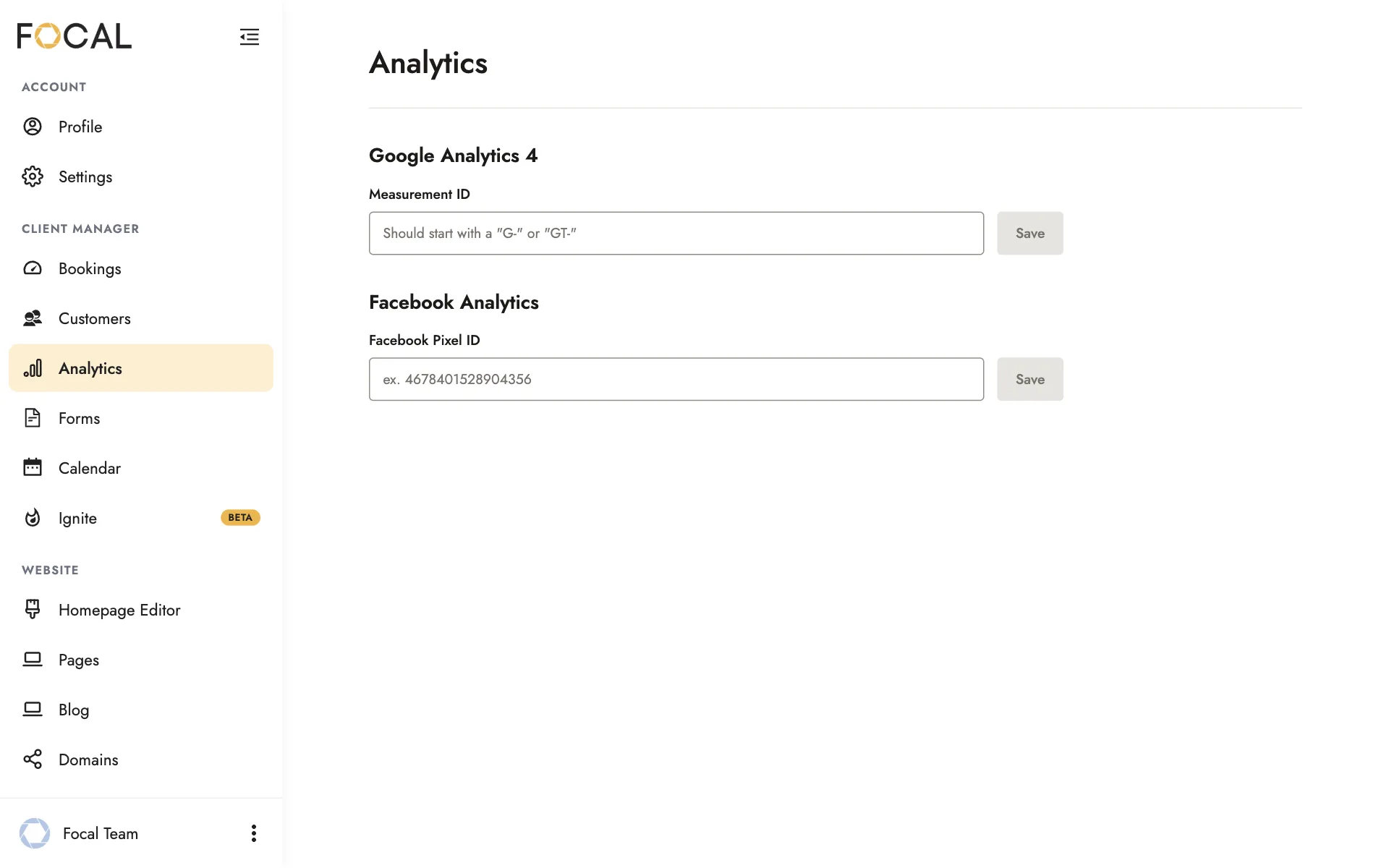
- Your Measurement ID starts with G-. To find it, see Google’s help page, Measurement ID (opens in a new tab).
- Your Facebook Pixel ID is a long number, which Meta’s Events Manager may label Dataset ID. To find it, see Meta’s help page, Set up and install the Meta Pixel (opens in a new tab). Focal only needs the ID, so you can skip Meta’s steps for adding code to your website.
Related guides
- Your profileName, company, location, phone, photos, logos, reviews and social links, and where they appear.
- Blog posts and the AI assistantWrite a post yourself or with the Blog Generator, turn Instagram posts into blog posts, and make AI writing sound like you.
- Connecting your domainBuying a domain, what DNS is, the records to add, checking the connection.
- Getting paidConnect Stripe, set your tax rate, schedule payment reminders, record outside payments, and see your revenue.
Still need help?
Email contact@bookfocal.com and a member of our team will help you.