Your homepage
Your homepage is usually the first page visitors see when they find your website. You edit it in the Homepage Editor, where you can change the text, photos, and settings of each section and see the result in a preview as you work.
Opening the Homepage Editor
In your Focal account, under WEBSITE in the left menu, click Homepage Editor.
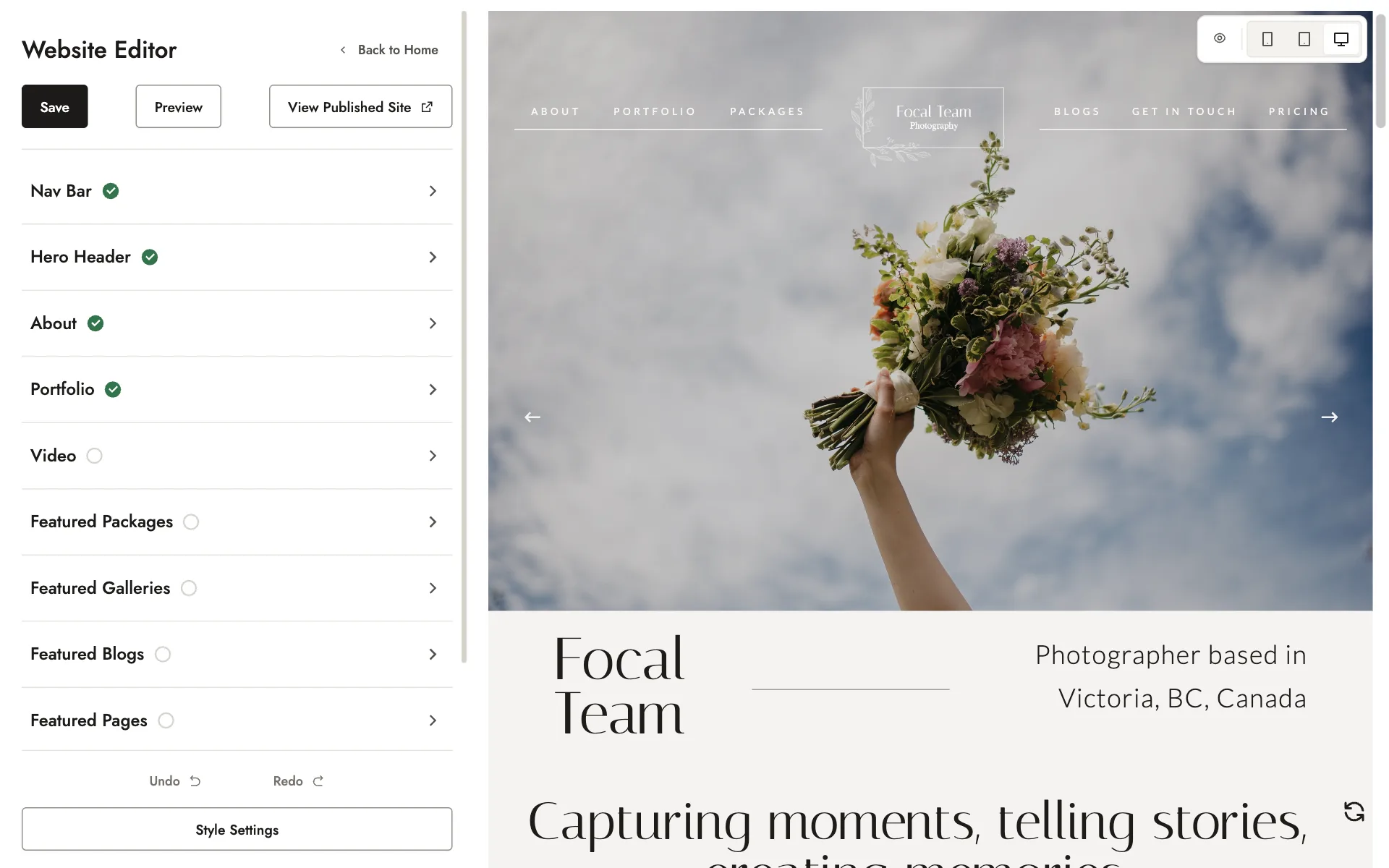
The editor has two parts. On the left, a panel titled Website Editor lists the sections of your homepage. On the right is a preview of your homepage.
Tip
Homepage sections
Your homepage uses a set order of sections, designed to introduce your photography, build trust, and guide visitors toward your packages. You can customize the content within each section while the layout stays consistent.
Some sections always appear. Optional sections appear only when you add content to them; there’s no separate show/hide toggle.
The sections appear in the editor in the same order as on your homepage:
| Section | What it shows | Type |
|---|---|---|
| Nav Bar | The row of links at the top of your website. See Your navigation menu. | Always shown |
| Hero Header | The large images or video at the very top. See Changing your hero images. | Always shown |
| About | Your welcome line, name, photo, and a short bio | Always shown |
| Portfolio | A selection of your photos | Optional |
| Video | A YouTube or Vimeo video | Optional |
| Featured Packages | Up to 6 of your packages | Optional |
| Featured Galleries | Up to 6 of your galleries | Optional |
| Featured Blogs | Up to 3 of your blog posts | Optional |
| Featured Pages | Up to 3 of your pages | Optional |
| Testimonials | Reviews from your clients | Optional |
| Contact Form | A short inquiry form. See Contact forms. | Always shown |
| Social Links | Your social media icons, shown in your About section. See Your profile. | Optional |
| Footer | The links and logo at the very bottom. See Your navigation menu. | Always shown |
To hide an optional section, leave all of its fields empty, including its title.
To choose what the featured sections show, see Featuring packages, posts, galleries and pages.
Style Settings, at the bottom of the list of sections, controls your template, colors, fonts, and logos across your whole website. See Fonts, colors, templates and your logo.
Next to each section in the editor’s list is a small circle. A green tick means the section has everything it asks for, and an empty circle means something is still missing, such as a title or a photo.
The circle doesn’t show whether a section appears on your homepage. A featured section can show an empty circle even when it’s set up the way you want.
Renaming a section heading
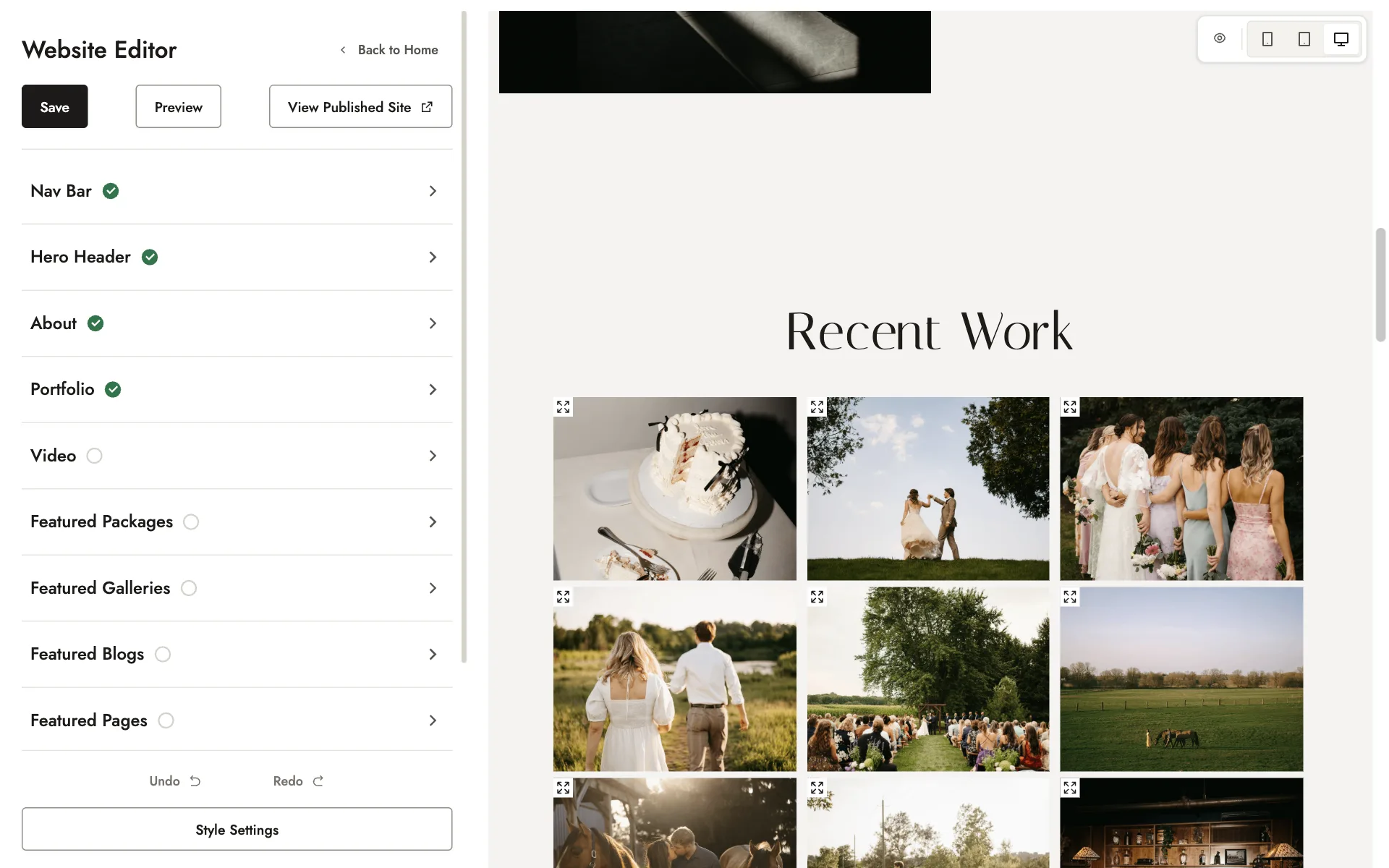
The heading visitors see on a section isn’t always the same as the section’s name in the editor. For example, on a new site the Portfolio heading reads Recent Work, and the Testimonials heading reads Client Love.
Many sections have a title field, such as Portfolio Section Title or Testimonials Section Title. To change a section’s heading, open the section, edit its title field, and click Save.
Editing a section
To open a section, click it in the preview, or click its name in the list. Its settings open in the panel on the left. To return to the list of sections, click Back to Sections.
Saving your changes
Click Save at the top of the panel to put your changes on your live website. To check it, click View Published Site, which opens your website in a new tab.
If you make a change you don’t want, click Undo at the bottom of the panel to step back through your recent changes. Redo steps forward again.
Previewing your website
Your website automatically adjusts its layout to fit phones, tablets, and computers. You make each change once, and it’s laid out to suit every screen size, so there’s no separate mobile version of your website to edit or maintain.
The one exception is your hero images, which have a separate set for mobile. See Changing your hero images.
To check how your homepage looks on a particular screen size, click the phone, tablet, or desktop icon above the preview. To see your homepage as a visitor would see it, click Preview at the top of the panel.
Most visitors view websites on their phones, so it’s a good idea to check the phone view before you save a big change.
Editing your About section
The About section introduces you and your business. It includes a welcome line, your name, a short tagline, a photo of you, and a few sentences about you.
To edit your About section:
- Open the About section.
- Edit the text in Welcome Tagline, Your Name, Tagline, and About You. The About You box includes basic text formatting.
- To change your photo, click Upload under Upload a Photo of You.
- Click Save.
The review rating and social media icons shown in this section come from your Profile. You can also edit the social media icons in the Social Links section of the Homepage Editor, which uses the same list as your profile. See Your profile.
AI-assisted text
Below the About You box is a link called Inform my AI Assistant. It opens your AI Assistant settings, where you can describe the writing style you want, or paste a few paragraphs of your own writing.
Focal’s AI then uses this to write text that sounds like you, such as blog posts. See Blog posts and the AI assistant.
Editing your Portfolio section
The Portfolio section shows a selection of your photos on your homepage. It holds up to 15 photos, and it’s separate from any portfolio pages you’ve created.
To edit your Portfolio section:
- Open the Portfolio section.
- Click Add to add photos, drag them into the order you’d like, and click the delete button on any photo you want to remove.
- Click Save.
Adding a video
The Video section shows a YouTube or Vimeo video on your homepage.
To add a video:
- Open the Video section.
- Paste the link to your YouTube or Vimeo video in Video Embed Link.
- If you’d like text with your video, fill in Video Section Header, Video Section Title, and Description.
- Click Save.
Adding testimonials
The Testimonials section shows reviews from your past clients. You add each testimonial yourself, and the section can show up to 6.
New sites start with sample testimonials as placeholders. Replace them with real reviews, or delete them, before you share your website.
To add a testimonial:
- Open the Testimonials section and click Add Testimonial.
- Enter the review, up to 750 characters, and the client’s name.
- If you have a photo of the client, click Upload Photo to add it.
- Click Save.
To remove a testimonial, open it and click Delete Testimonial.
What you can’t change on your homepage
- The order of the sections. Each section has a set place on your homepage. For example, About always appears above Portfolio.
- The layout within each section. Layouts come from your template. To change them, choose a different template in Style Settings.
- Settings for search engines. Focal handles your SEO for you, so there’s nothing you need to set up. If you’d like to go further, see Getting found on Google.
Your other pages and blog posts are more flexible. On those, you can add, remove, and reorder sections freely. See Creating and editing pages.
Related guides
- Changing your hero imagesReplace the large photos or video at the top of your homepage, for desktop and for mobile.
- Featuring packages, posts, galleries and pagesChoose which packages, galleries, blog posts and pages appear on your homepage, and in what order.
- Contact formsEdit the contact form on your homepage, pages, blog posts and packages, and find where inquiries arrive.
- Your navigation menuRenaming your menu links, choosing where each one goes, and your footer links.
Still need help?
Email contact@bookfocal.com and a member of our team will help you.