Your navigation menu
Your navigation menu is the row of links at the top of your website. You can rename each link and choose where it takes visitors in the Nav Bar section of the Homepage Editor.
How your menu works
Your navigation menu has 6 customizable links. By default, they’re About, Portfolio, Packages, Blogs, Get In Touch and Pricing. Most of them link to the matching section of your homepage, while Blogs opens your blog and Pricing opens your packages page. You can’t add or remove links, but once you’ve created and published a page under Pages, you can point one of these links to it so visitors can find it.
To hide a link, delete its Link Name. The link is still there, but it shows as a gap in your menu.
The Packages link scrolls to the Featured Packages section of your homepage, which only appears once you’ve chosen packages to feature. Until then, you can point the Packages link somewhere else, such as your testimonials or a new page.
Tip
Renaming a link or changing where it goes
- In your Focal account, under WEBSITE in the left menu, click Homepage Editor.
- Click Nav Bar in the list of sections, or click the menu in the preview.
- Click the link you want to change.
- In Link Name, type the name you want to show in your menu.
- Under Link to, choose where the link takes visitors: a section of your homepage, a page, or another website.
- Click Save at the top of the panel.
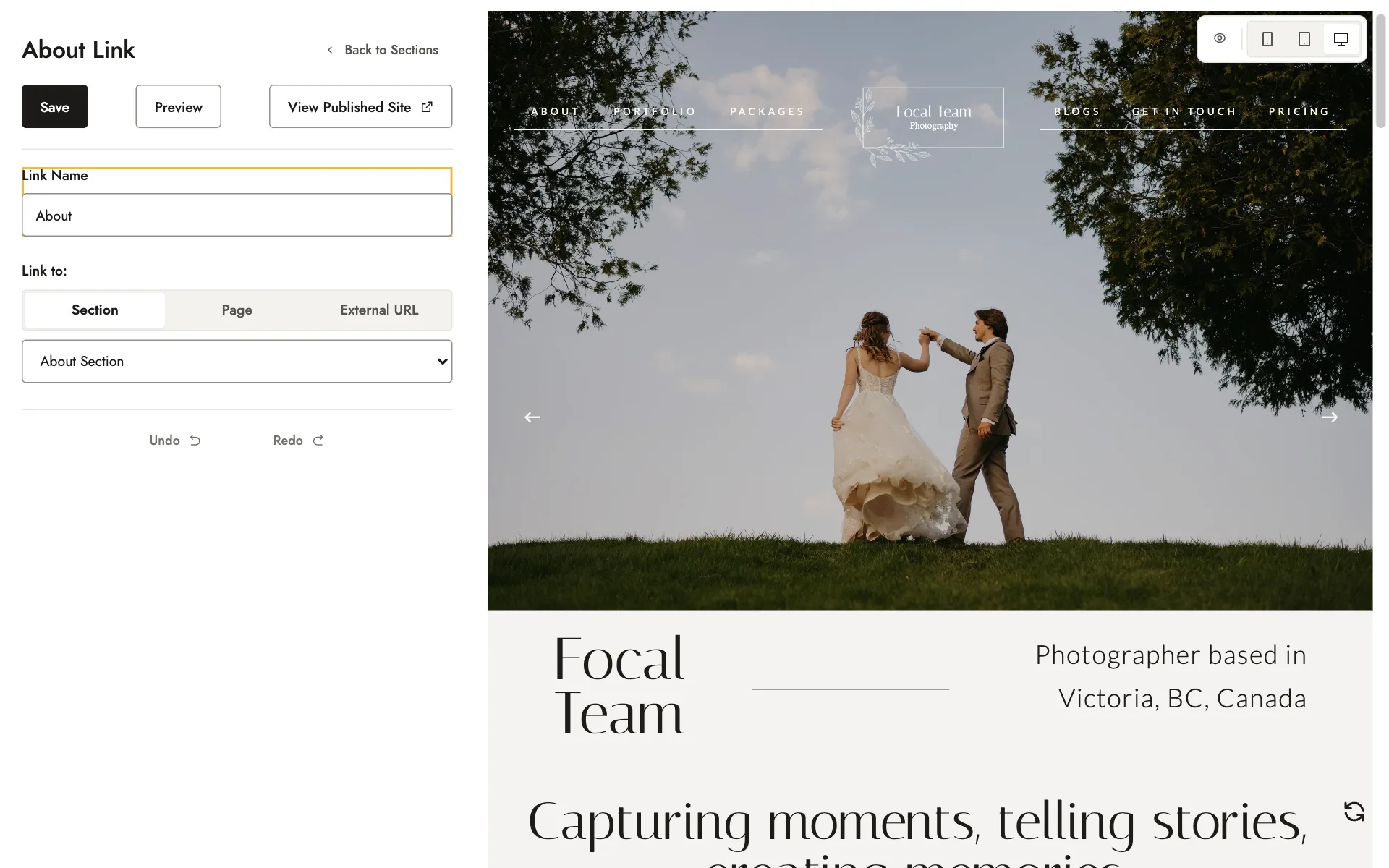
To change another link, click Back to Sections to return to the list of links.
The three Link to options:
- Section links to a section of your homepage, such as About, your testimonials (listed as Client Love Section) or your contact form (listed as Contact Section). When visitors click it, your homepage scrolls down to that section.
- Page links to your packages page (listed as Pricing Page), your blog (listed as Blogs Page), or any page or blog post you’ve published.
- External URL links to any web address, such as one of your packages or a video portfolio hosted on another website. For another website, tick Open in new tab so your website stays open behind it.
Adding a page to your menu
New pages aren’t added to your menu automatically. Once you’ve published a page, you can point one of your menu links to it.
To add a page to your menu:
- Publish your page under Pages. Only published pages appear in the Link to list. See Creating and editing pages.
- In the Homepage Editor, open Nav Bar and click the link you want to use.
- Change its Link Name to your page’s name.
- Under Link to, choose Page, then select your page.
- Click Save.
If you’d rather keep all your current links, you can feature the page on your homepage in the Featured Pages section instead. See Featuring packages, posts, galleries and pages.
Changing the order of your links
You can reorder your menu by renaming your links and changing where each one goes, since links can’t be dragged into place.
For example, to swap your first and last links, About and Pricing, rename the first link Pricing and point it to Pricing Page. Then rename the last link About and point it to your About section.
Tip
Your footer links
Your footer has its own set of links at the bottom of your website. You can rename them and choose where they go in the Footer section of the Homepage Editor, the same way as in the Nav Bar.
Changes to your menu don’t update your footer, so when you change a link in one, check whether the other needs the same change.
Check it worked
In the list of sections, Nav Bar shows a green tick when every link has a name and a destination. An empty circle means a link is missing one of these.
After you save, click View Published Site and try each link in your menu. To see your menu on a phone, click the phone icon above the preview.
Related guides
- Creating and editing pagesAdd and publish a page, add text, photos, and video, and arrange its sections.
- Your homepageWhat each section of your homepage shows, and how to edit your About, Portfolio, Video, and Testimonials sections.
- Fonts, colors, templates and your logoStyle Settings: your template, color scheme, fonts, light and dark logos, and category.
- Changing your hero imagesReplace the large photos or video at the top of your homepage, for desktop and for mobile.
Still need help?
Email contact@bookfocal.com and a member of our team will help you.