Contracts and questionnaires
Save your contracts and questionnaires as templates under Forms. You can then attach them to any booking, and your client signs or fills them in from their client portal.
Creating a contract
- Select CLIENT MANAGER > Forms in the left menu.
- On the Contracts tab, click Add contract.
- Enter a Name.
- Write or paste your contract under Content. To start from Focal’s, click Use Focal Default Template, then Confirm To Use.
- Click Submit.
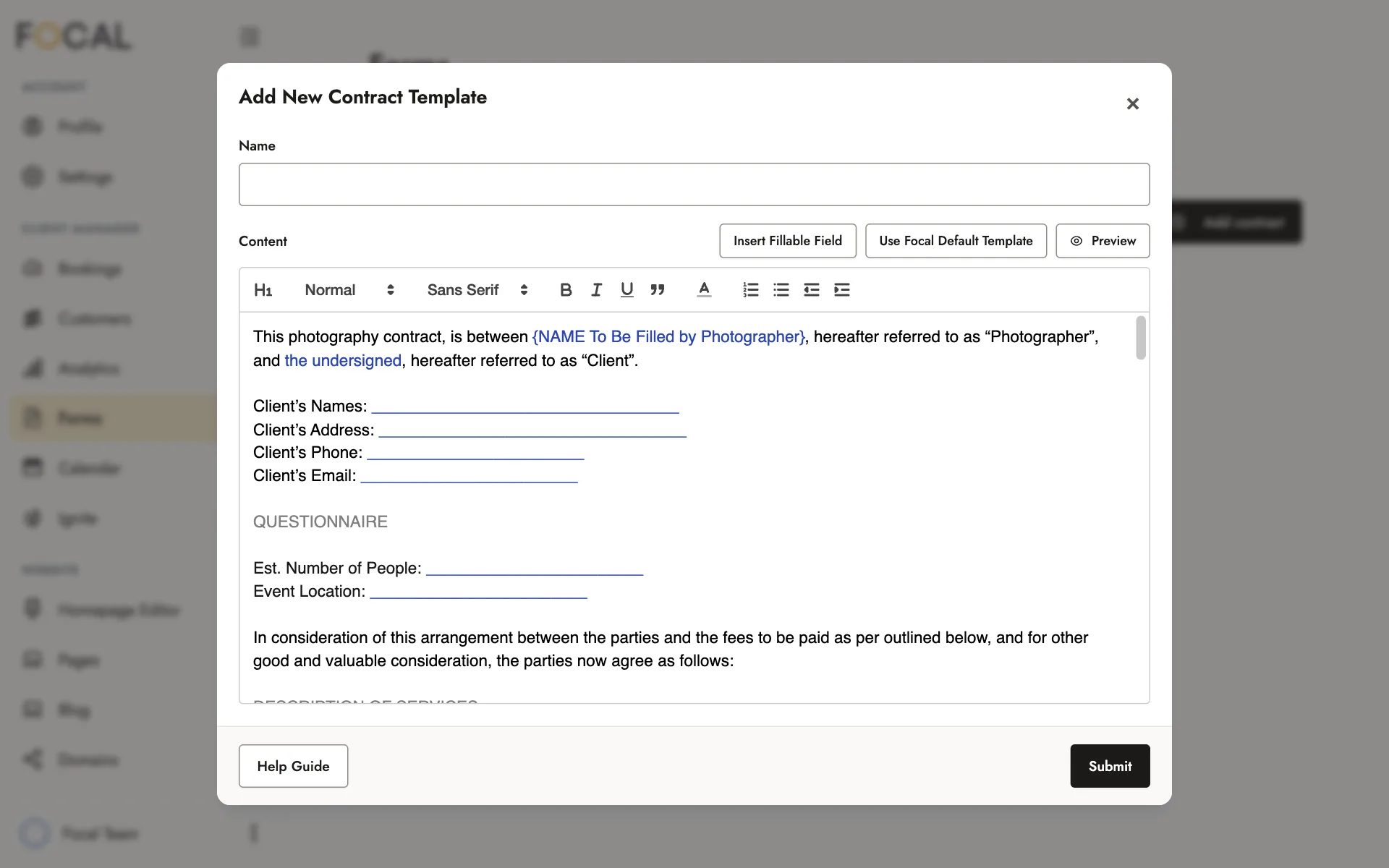
Focal’s default contract has placeholders in curly brackets, such as {NAME To Be Filled by Photographer}. Replace them with your own details before you submit it.
Adding fillable fields
A fillable field is a blank your client fills in when they sign, such as their address. To add one, click Insert Fillable Field and choose Short Fillable Field or Big Fillable Field.
Your client has to fill in every field before they can sign.
Their signature is added to the end of the contract, so don’t end it with a fillable field. Your client wouldn’t be able to sign it properly.
Creating a questionnaire
Questionnaires work the same way as contracts. On the Questionnaires tab, click Add questionnaire, enter a name, and write your questions, or start from Focal’s with Use Focal Default Template. Add a fillable field for each answer, then click Submit.
Focal’s default questionnaire is written for weddings, so edit it to suit your sessions.
Managing your templates
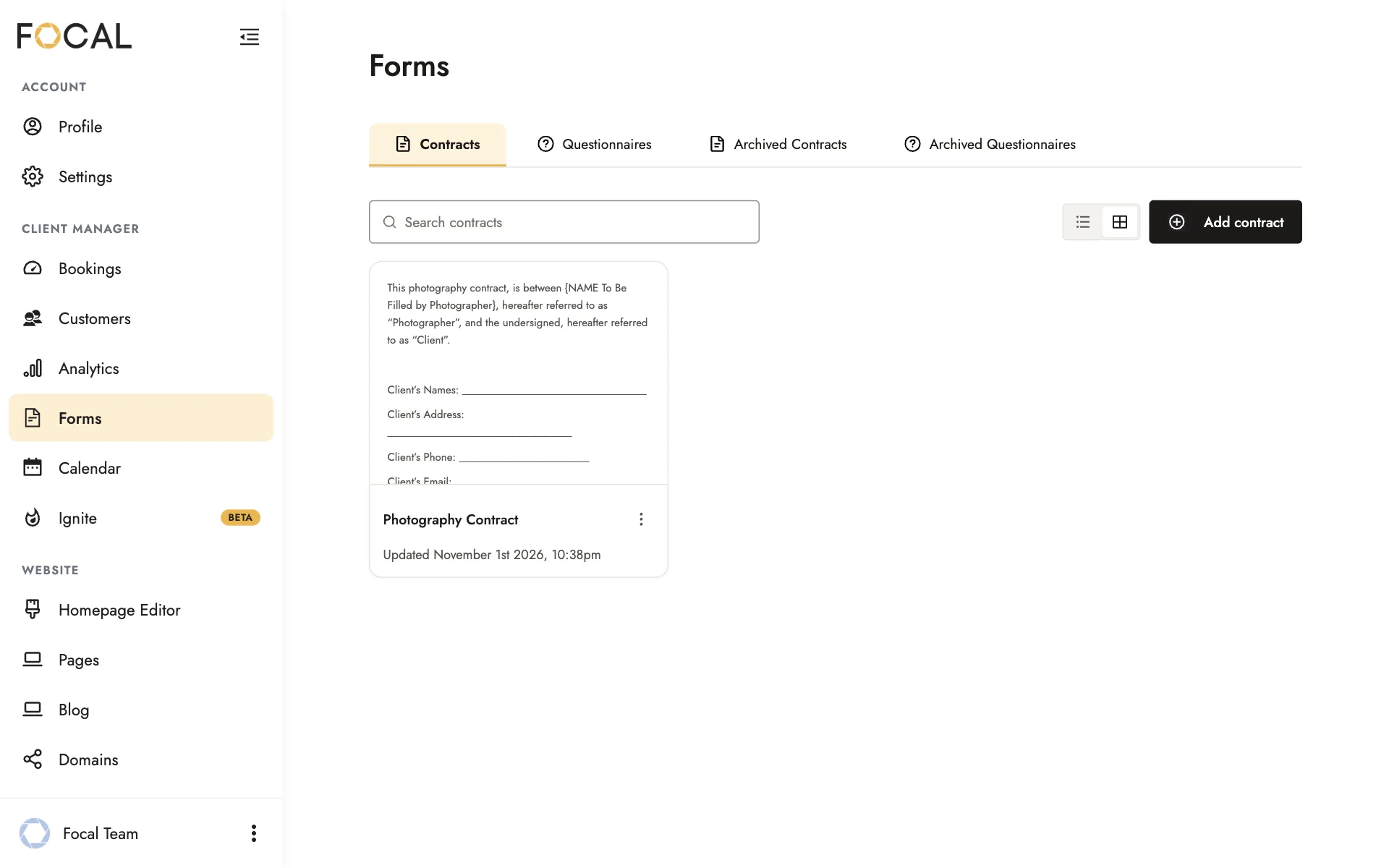
To edit a template, click it, make your changes, then click Save Changes.
To copy or delete a template, open its actions menu (the three dots) and choose Duplicate or Remove.
Sending them to a client
To send a contract or questionnaire, attach it to your client’s booking. You can change a contract’s wording for one booking without changing your template. See Bookings and client portals.
Once your client has signed a contract, it can’t be deleted from their booking, so the signing record stays. You can archive it instead, which hides it from your client.
Related guides
- Bookings and client portalsAccept a booking request, set up your client’s portal, add a booking yourself, and manage your bookings.
- Getting paidConnect Stripe, set your tax rate, schedule payment reminders, record outside payments, and see your revenue.
- Packages and booking optionsAdd and publish a package, choose how clients book it, create add-ons, and organize your packages page.
- Your calendar and availabilityConnect Google Calendar, set the days and hours clients can book, and add a buffer.
Still need help?
Email contact@bookfocal.com and a member of our team will help you.