Focal editor basics
Your Focal account is where you update your website, manage clients and bookings, and access your account settings. This guide explains how to navigate your account, edit your website, and save or publish changes.
Logging in
Go to app.bookfocal.com (opens in a new tab) and log in with your email and password.
If you forgot your password, click Forgot your password? on the login page to reset it.
Note
Client inquiries that come through the contact forms across your website are sent to the email address you use to log in, so you should use an address you check regularly.
You can change your login email under Settings > Security. Inquiries will then be sent to the new address.
Finding your tools
The left menu has three groups: ACCOUNT, CLIENT MANAGER, and WEBSITE.
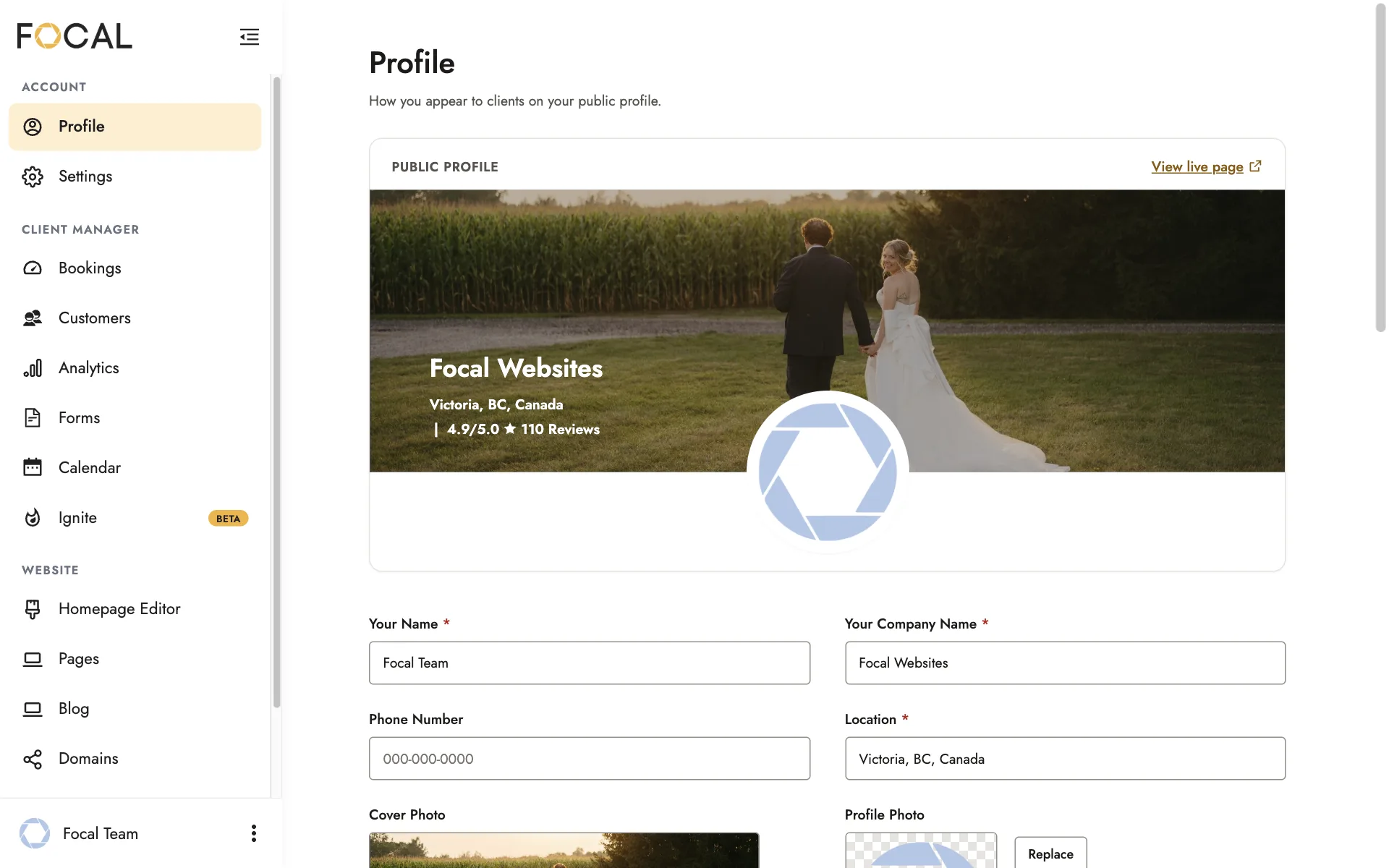
Account
Manage your business details and account settings.
- Profile: Update your name, company, location, photos, logos, reviews, and social links. See Your profile.
- Settings: Connect a bank account to accept payments, adjust your tax settings, and manage your subscription, login details, and AI assistant. See Getting paid.
Client Manager
Manage clients, bookings, and the tools you use to work with them.
- Bookings: View and manage booking requests and confirmed bookings. See Bookings and client portals.
- Customers: Find people who have inquired or booked with you.
- Analytics: View revenue and booking data, and add your Google Analytics and Facebook Pixel IDs. See Getting found on Google.
- Forms: Create and manage contract and questionnaire templates. See Contracts and questionnaires.
- Calendar: Connect Google Calendar and set your available days and hours. See Your calendar and availability.
- Ignite: Access Focal’s managed growth program.
Website
Build and update your website and client galleries.
- Homepage Editor: Edit your homepage content, navigation menu, fonts, colors, template, and logos. See Your homepage.
- Pages: Create and edit additional pages, such as About or FAQ pages. See Creating and editing pages.
- Blog: Create and edit blog posts. See Blog posts and the AI assistant.
- Domains: Connect your website to a custom domain. See Connecting your domain.
- Packages: Manage your packages and packages page. See Packages and booking options.
- Galleries: Create and manage galleries for delivering photos to clients. See Client galleries.
Locked features
Saving and publishing
Click Save at the top of an editor to keep your changes. Changes you haven’t saved are lost when you leave.
What Save does depends on what you’re editing.
- Something that’s already live, such as your homepage or a published page, blog post, or package. Save puts your change on your website straight away.
- Something new, such as a new page, blog post, or package. Save keeps your work, but it won’t appear on your website until you publish it.
New pages and blog posts have a Publish button at the top, next to Save and Preview. Once a page or blog post is live, the button changes to Unpublish.
A new package goes live from your Packages list. Click Actions beside the package, then choose Publish on Portfolio.
If a change appears in the editor but not on your website, it hasn’t been saved or published yet.
Related guides
- Your homepageWhat each section of your homepage shows, and how to edit your About, Portfolio, Video, and Testimonials sections.
- Your profileName, company, location, phone, photos, logos, reviews and social links, and where they appear.
- Creating and editing pagesAdd and publish a page, add text, photos, and video, and arrange its sections.
- Packages and booking optionsAdd and publish a package, choose how clients book it, create add-ons, and organize your packages page.
Still need help?
Email contact@bookfocal.com and a member of our team will help you.