Your calendar and availability
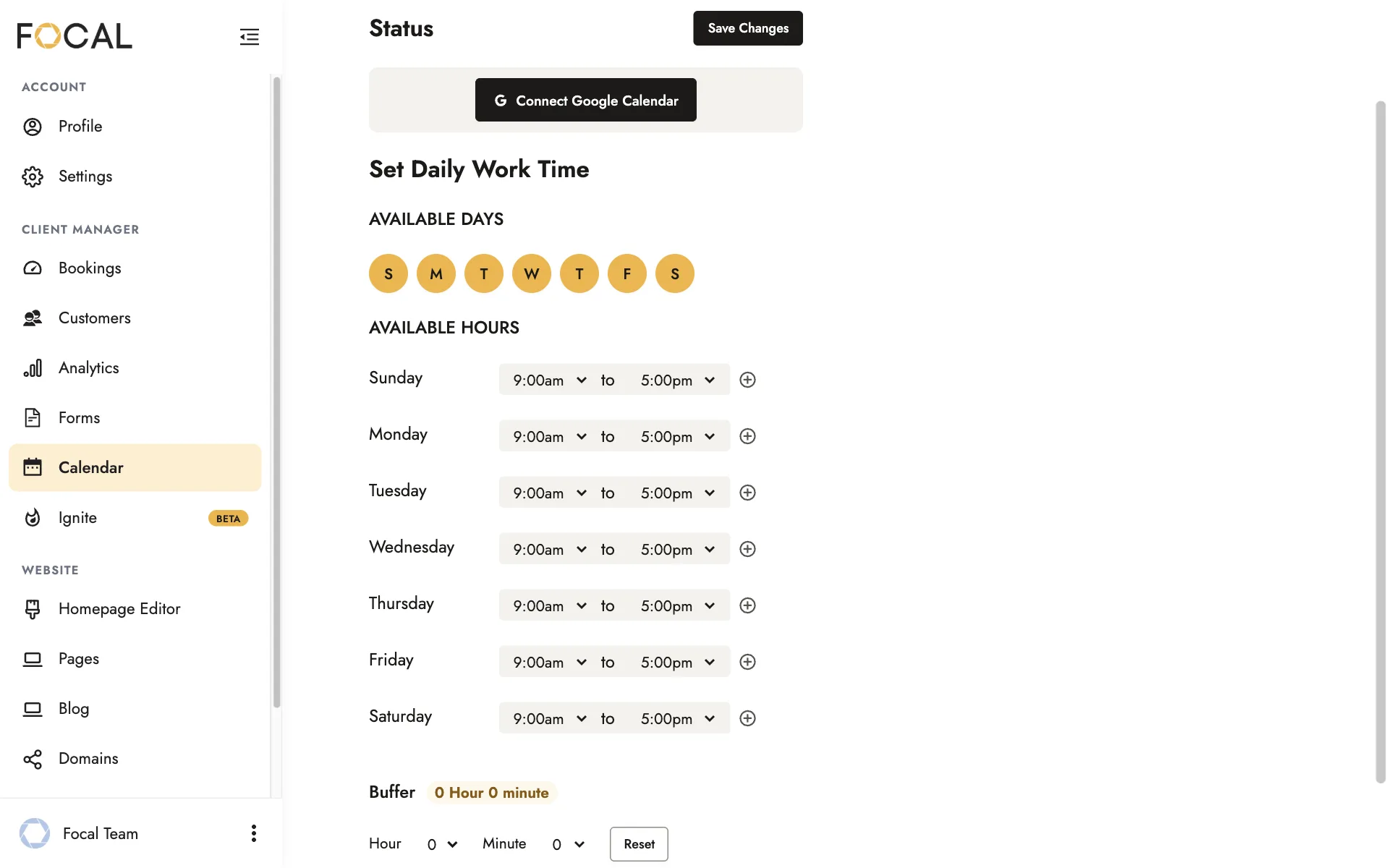
Your calendar settings decide which days and times clients can choose on packages set to Booking With Calendar or Instant Book. Connect your Google Calendar, and set the days and hours you’re available.
Connecting Google Calendar
Once your Google Calendar is connected, Focal doesn’t offer clients times when you’re busy. Without it, clients see every time within your available hours as open, even times you’ve already booked in Focal.
Connect Google Calendar before you set a package to Booking With Calendar or Instant Book.
- Select CLIENT MANAGER > Calendar in the left menu.
- Click Connect Google Calendar, then follow Google’s steps to sign in and give Focal access.
- Back on the Calendar page, click View and Select and tick each calendar you want Focal to check.
- Click Save Changes.
Clients can book any time the calendars you tick show as free, so keep them up to date. If you don’t, set your packages to Contact Form Only and ask for the date in their contact form.
When you accept a booking request or create a booking with a date, Focal adds it to your Google Calendar. To leave one out, untick Add Event to Google Calendar first.
Focal connects to Google Calendar only. If you use another calendar app, such as Apple Calendar, set it up to show in your Google Calendar, then tick it under View and Select.
Setting your available days and hours
Under AVAILABLE DAYS, click a day to turn it on or off. Then set the start and end time for each day under AVAILABLE HOURS.
To add a second time range to a day, such as a morning and an evening, click the plus icon beside it.
Make sure each day’s hours are long enough for your longest package. A client can only choose a start time if the whole package fits before your hours end.
Click Save Changes at the top of the page when you’re done.
To limit how far ahead clients can book a package, use Weeks Available in the package. See Packages and booking options.
Adding a buffer
Under Buffer, choose how much time to keep free after each event in your Google Calendar before the next booking can start. Then click Save Changes.
For example, set 1 hour to leave time to travel between shoots.
Related guides
- Packages and booking optionsAdd and publish a package, choose how clients book it, create add-ons, and organize your packages page.
- Bookings and client portalsAccept a booking request, set up your client’s portal, add a booking yourself, and manage your bookings.
- Mini sessionsSet up a mini session with its meeting place, dates, and time slots, and see how clients book it.
- Getting paidConnect Stripe, set your tax rate, schedule payment reminders, record outside payments, and see your revenue.
Still need help?
Email contact@bookfocal.com and a member of our team will help you.