Getting paid
Clients pay for their bookings by card through Stripe, and the payments go to your bank account. Connect Stripe, set your tax rate, and use payment reminders to schedule each booking’s payments.
Connecting Stripe
Plan required
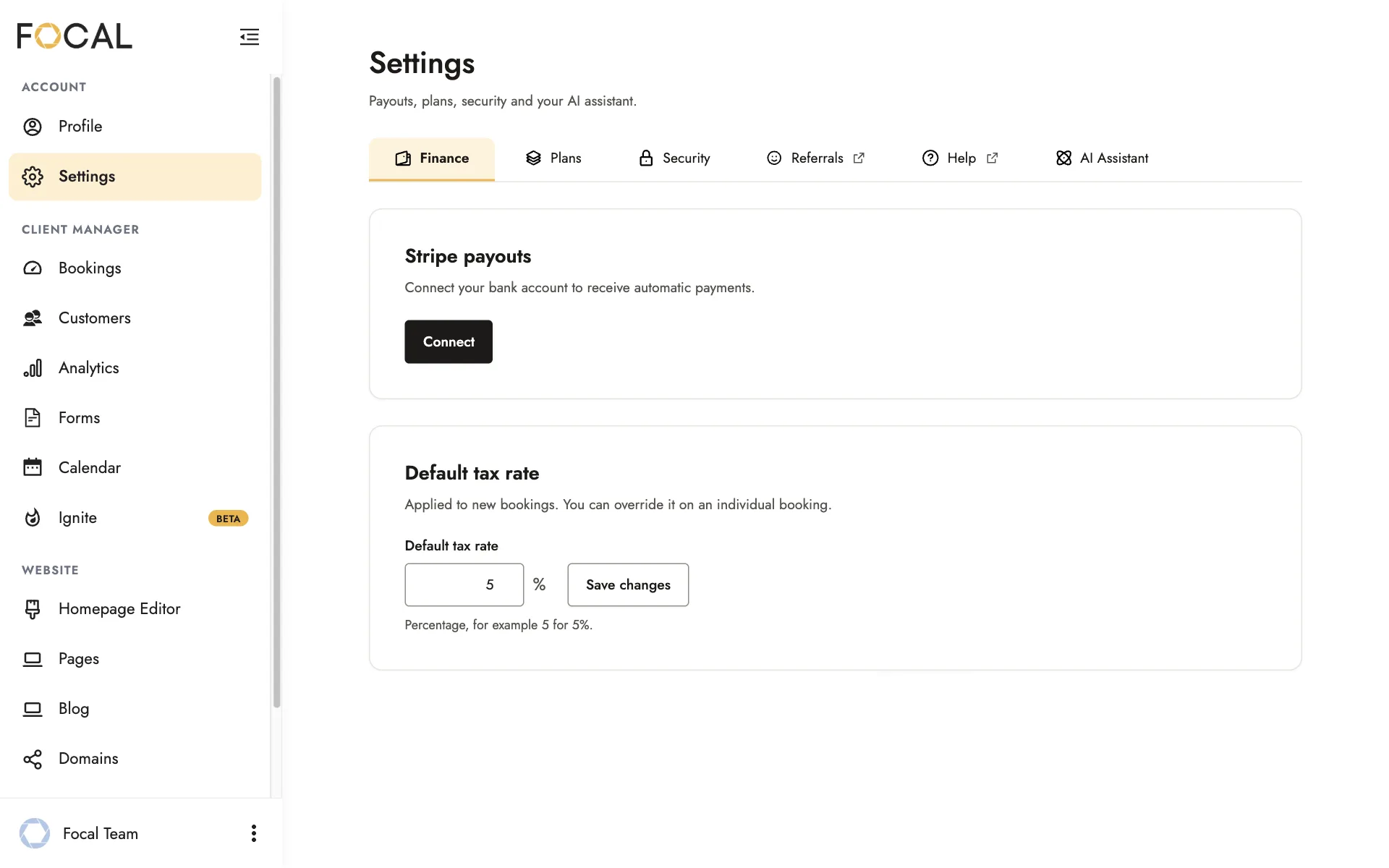
- Select ACCOUNT > Settings > Finance.
- Under Stripe payouts, click Connect.
- Follow Stripe’s steps to set up your account and add your bank account.
Once Stripe is connected, click Open Stripe dashboard to see your payouts and billing details.
You can accept bookings before you connect Stripe, but clients can’t pay online until you do.
Payments use the currency of the location in your profile. To change it, update your location under Profile.
Setting your tax rate
Under Default tax rate, enter your rate as a percentage, such as 5 for 5%, and click Save changes. It’s applied to new bookings.
To use a different rate for one booking, click Edit beside Taxes in that booking.
Scheduling payments with reminders
Payment reminders split a booking into payments, such as a deposit and a final payment. Each one emails your client a link to their booking so they can pay.
- In Bookings, open the booking’s actions menu and choose Edit.
- Click Manage Payment Reminders, then Add Payment Reminder.
- Enter a Title, such as Deposit, and a Payment Amount or Payment Percentage.
- Under When to send, choose Day Before, 30 Days Before, or 90 Days Before the session, or Custom to pick a date and time.
- Click Save.
Total Reminders Set shows how much of the booking your reminders cover. If Unset Reminders isn’t zero, part of the total has no payment date yet.
Reminders aren’t sent once a booking is fully paid. To stop a single reminder, mute it with its bell icon.
To send a reminder straight away, choose Send Payment Reminder from the booking’s actions menu.
Recording a payment made outside Focal
If a client pays you another way, such as cash or a bank transfer, record it so the booking shows the right amount left to pay.
In Bookings, open the booking’s actions menu and choose Record Outside Payment. Enter the Amount, tick Send Email Notification if you’d like to let your client know, then click Confirm Payment.
What clients see
Clients pay from their client portal with Pay With Card. They can choose a payment you’ve scheduled, such as a deposit, pay the Total Remaining Due, or enter an Other Amount up to what’s left. On Instant Book and mini-session packages, they pay as they book.
To let a client add a tip when they pay, tick Allow Tipping in their booking. Tipping needs Stripe, and once a booking is fully paid and tipped, you can’t change its pricing.
Seeing your revenue
Analytics in the left menu shows your revenue and bookings for each year and for the last 30 days. You can show revenue by payment date or session date, and choose whether to include tips and tax.
To download your records, click Export payments or Export bookings at the top of Bookings, then choose a date range.
Related guides
- Bookings and client portalsAccept a booking request, set up your client’s portal, add a booking yourself, and manage your bookings.
- Packages and booking optionsAdd and publish a package, choose how clients book it, create add-ons, and organize your packages page.
- Your calendar and availabilityConnect Google Calendar, set the days and hours clients can book, and add a buffer.
- Mini sessionsSet up a mini session with its meeting place, dates, and time slots, and see how clients book it.
Still need help?
Email contact@bookfocal.com and a member of our team will help you.