Changing your hero images
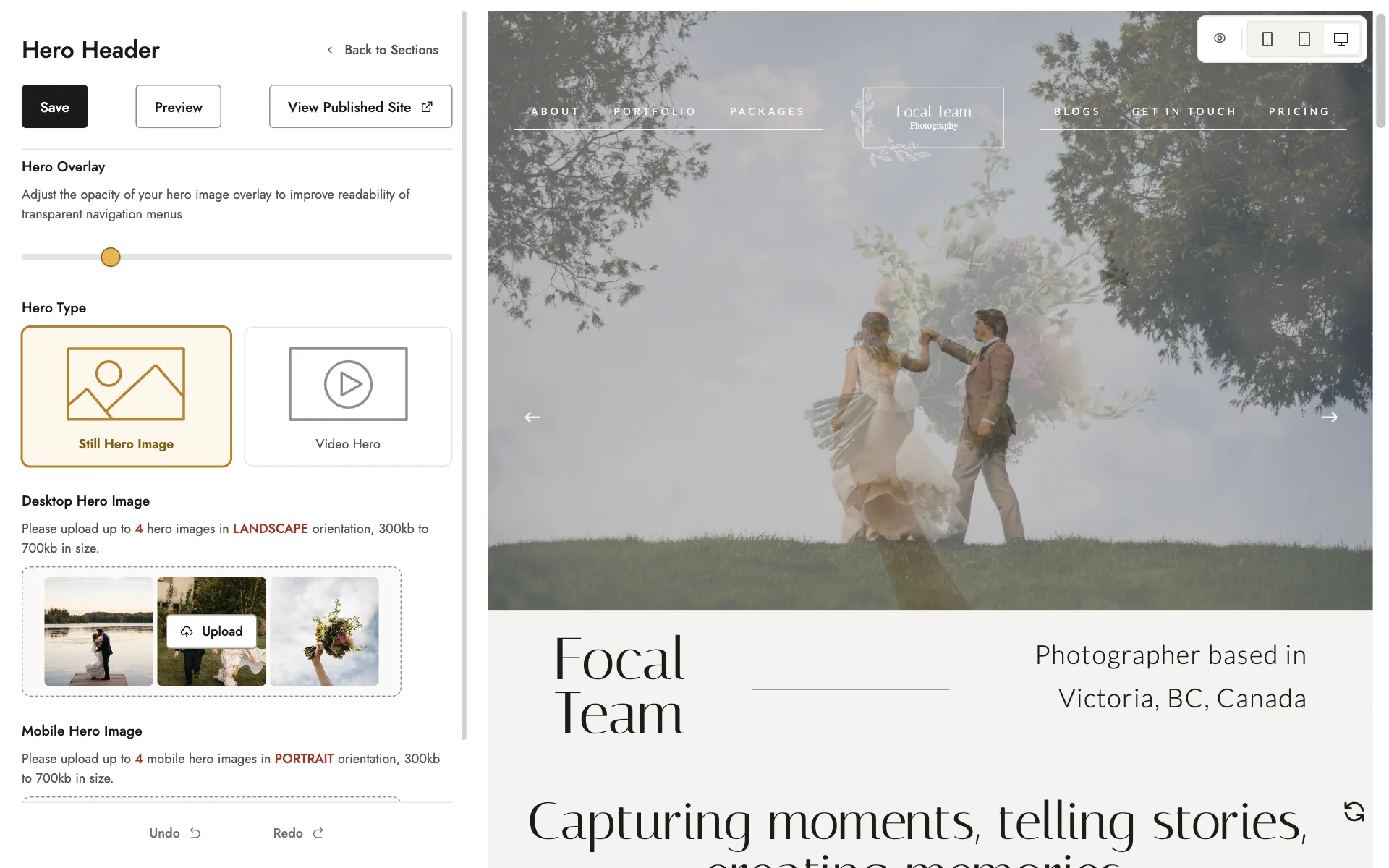
The Hero Header is the large banner area at the top of your homepage. Add up to 4 images or a video in the Hero Header section of the Homepage Editor.
Using images
You can add up to 4 landscape images for desktop, and up to 4 portrait images for mobile.
To change your hero images:
- In your Focal account, under WEBSITE in the left menu, click Homepage Editor.
- Open the Hero Header section and check that Hero Type is set to Still Hero Image.
- Under Desktop Hero Image, click Upload. In the window that opens, add new images, delete any you no longer want, and drag them into the order you’d like them to appear.
- Do the same under Mobile Hero Image.
- Click Save.
In the list of sections, Hero Header gets a green tick once it has a desktop image, a mobile image, and both logos in Style Settings. To add your logos, see Fonts, colors, templates and your logo.
What to upload
A landscape image is wider than it is tall, such as 3:2 or 16:9. A portrait image is taller than it is wide, such as 2:3 or 4:5.
Tip
Making your menu easier to read
If your menu is hard to read over your hero images, use the Hero Overlay slider in the Hero Header section to adjust the opacity of the overlay.
Using a video instead
Instead of images, your Hero Header can show a video. It plays automatically at the top of your homepage, without sound.
To use a video hero:
- In the Hero Header section of the Homepage Editor, set Hero Type to Video Hero.
- Upload a video under Desktop Hero Video, and another under Mobile Hero Video. Both are required, and each can be up to 1.5GB.
- Click Save.
Short videos work best, since visitors only look at the hero for a few seconds.
Video elsewhere on your website, such as in the Video section of your homepage, a page, a blog post, or a package, uses a pasted YouTube or Vimeo link instead of an uploaded file.
Related guides
- Your homepageWhat each section of your homepage shows, and how to edit your About, Portfolio, Video, and Testimonials sections.
- Fonts, colors, templates and your logoStyle Settings: your template, color scheme, fonts, light and dark logos, and category.
- Your navigation menuRenaming your menu links, choosing where each one goes, and your footer links.
- Featuring packages, posts, galleries and pagesChoose which packages, galleries, blog posts and pages appear on your homepage, and in what order.
Still need help?
Email contact@bookfocal.com and a member of our team will help you.